You’re a thousand miles from home and open your security camera app to check in. Every camera shows offline. The most likely cause isn’t a camera problem — it’s that your modem or router has locked up and needs a power cycle. The fix takes 90 seconds when you’re home. When you’re away, it’s a different story. Here’s how to handle it.
Jump to a solution:
Why does this keep happening?
Modems and routers are computers, and like any computer they can freeze, develop memory leaks, or lose sync with your ISP after hours or days of continuous operation. It’s especially common with ISP-supplied modems. A power cycle — cutting power for 30 seconds and restoring it — clears the issue almost every time. The problem is doing that when you’re not there.
1. Call Your ISP First
Before doing anything else, call your internet provider. Most ISPs can send a remote reset signal directly to your modem. It takes them about two minutes and often solves the problem without you needing any hardware at home. Ask specifically for a “remote modem reset” — not just a line check.
The catch: if your modem is completely frozen and not responding to the network, the ISP can’t reach it remotely either. In that case, they’ll tell you there’s nothing they can do. Also ask them to check for any known outages in your area — sometimes what looks like a frozen modem is actually a neighborhood-level service issue that will resolve on its own.
Tip: If you have a neighbor you trust, a quick text asking them to unplug your modem for 60 seconds and plug it back in is often the fastest solution. Worth having that conversation before a long trip.
2. Keep Connect — Automatic Internet Watchdog
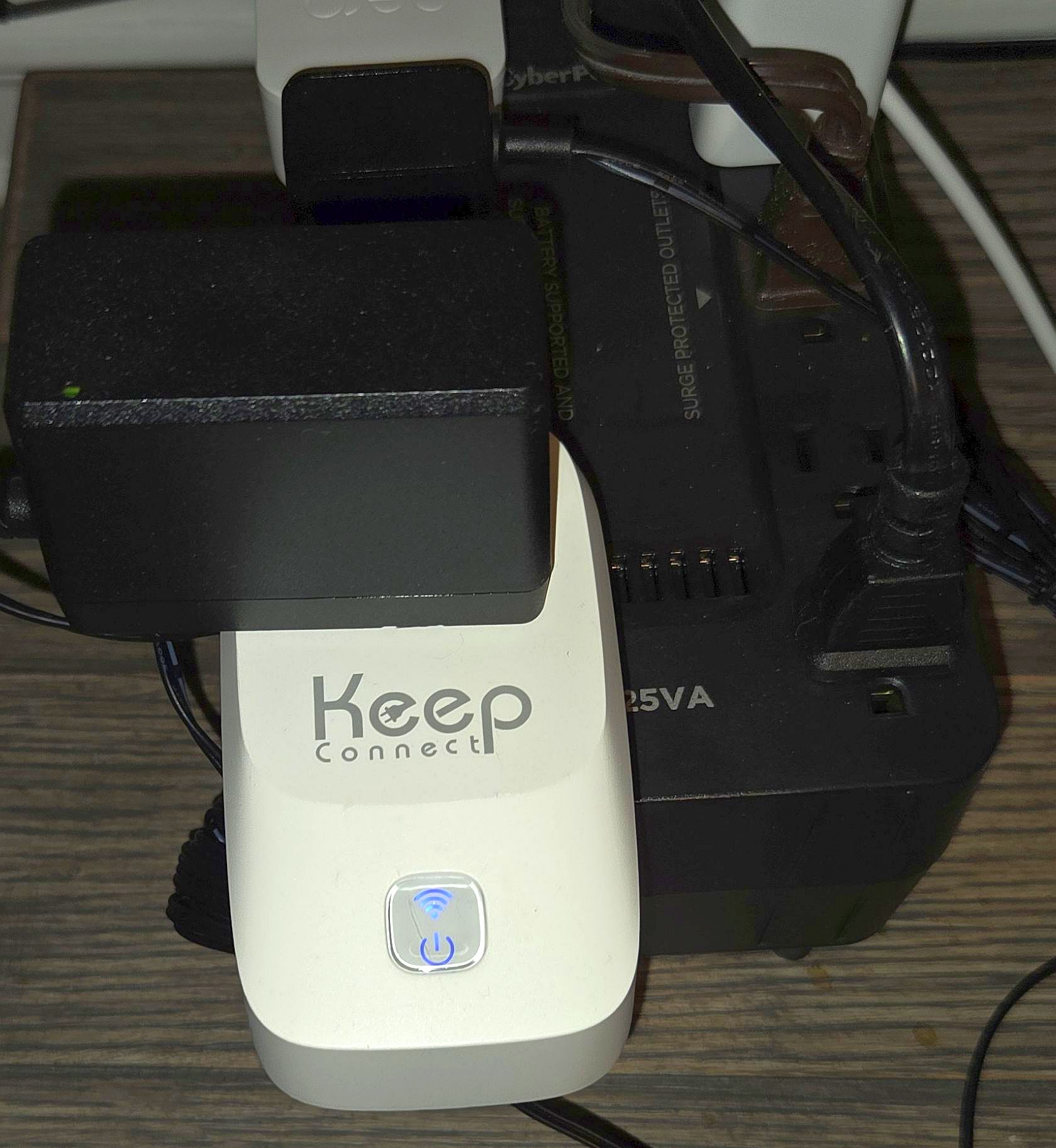
The Keep Connect Router Rebooter is the most purpose-built solution for this problem. It’s a small device that plugs into your wall outlet and your modem or router plugs into it. It continuously monitors your internet connection by pinging a reliable external server. When it detects that the internet is down, it automatically cuts power to the device and restores it — a proper power cycle — without any intervention from you.
It also supports scheduled reboots — you can set it to automatically power cycle the modem once a week at 3am, which prevents the gradual memory buildup that causes lockups in the first place. Text and email notifications let you know when a reboot has occurred.
If you have a separate modem and router:
Get two Keep Connect units and configure them in Master/Follower mode. The Master monitors internet health and signals the Follower when a reboot is needed. Critically, this brings the modem back online before the router restarts — exactly the right sequence for a clean recovery. One unit per device, coordinated automatically.
This is our top recommendation for anyone with security cameras at a vacation home, rental property, or any location they’re away from for extended periods. Set it up once and don’t think about it again.
3. Smart Plug with Scheduled Reboot
A Kasa smart plug paired with your modem gives you remote on/off control from your phone — anywhere in the world. When your cameras go offline and you suspect the modem is the issue, you open the Kasa app, turn the plug off, wait 60 seconds, and turn it back on. Done.
The important caveat: a standard smart plug requires an active internet connection to receive commands. If your modem is frozen and the internet is down, the smart plug can’t be reached remotely — it’s offline too. This makes a smart plug most useful for two things: scheduled preventive reboots (set it to cycle power at 3am weekly), and situations where the router is the problem but the modem is still online.
Best setup with a smart plug:
- Plug the router into the smart plug — the modem is typically more stable and less likely to lock up
- Set a weekly scheduled reboot at a low-traffic hour like 3am Sunday
- If both modem and router go down, you’ll need a Keep Connect or a neighbor’s help
4. Programmable Outlet Timer — Simplest Option
A programmable outlet timer is the lowest-tech option and costs under $15. It doesn’t monitor internet health and it can’t be controlled remotely — it simply cuts power on a schedule you set in advance. Not smart, but surprisingly effective as a preventive measure.
If you use two timers — one for the modem and one for the router — set the modem to power off first and come back on a few minutes before the router. This gives the modem time to fully establish its connection with the ISP before the router tries to connect to it.
Example timer schedule:
- Modem timer: power off at 3:00am, power on at 3:02am
- Router timer: power off at 3:00am, power on at 3:07am
- The 5-minute gap ensures the modem is fully online before the router starts up
The downside is obvious: it won’t help you if the modem locks up unexpectedly between scheduled reboots. But for people whose routers just need a regular reset and who want a zero-maintenance solution, a timer set to weekly reboots works reliably well.
5. Planning Ahead for Extended Trips
If uninterrupted access to your security cameras matters — a vacation home, a rental property, an elderly parent’s house — it’s worth setting this up before you leave rather than scrambling after cameras go dark. A few things worth doing before any extended absence:
- Install a Keep Connect on the modem — it handles the problem automatically without you doing anything
- Put the router on a Kasa smart plug with a weekly scheduled reboot
- Make sure your camera’s power is also on a smart plug — if the internet recovers but the camera is frozen, you need to be able to reboot it remotely too. See our guide on how to remotely restart a security camera
- Save your ISP’s support number in your phone before leaving
- Tell a neighbor — a trusted neighbor with a key is still the fastest fallback for a hardware problem
Pro tip: If your cameras keep going offline regularly — not just when you’re away — the problem may be your network setup rather than the modem. Check out our guide on why security cameras go offline and how to fix it for a full troubleshooting walkthrough.
Which Solution Is Right for You?
Set It Up Before You Leave, Not After Cameras Go Dark
For most people with security cameras at a remote location, the ideal setup is a Keep Connect on the modem — it handles automatic recovery without any action from you — paired with a Kasa smart plug on the router for manual remote control and scheduled weekly reboots. That combination covers virtually every scenario. Set it up before your next trip and you likely won’t have to think about it again.